





Introduction
Connect the CONTROLLER AI to the AC Infinity app to unlock its full potential. Securely control your devices remotely, use advanced automation programs, set up alerts and notifications, view climate charts and graphs, export CSV data, and much more.
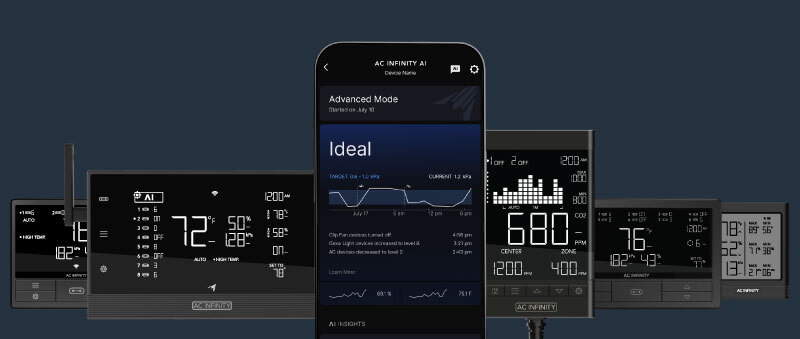
Smart Controllers – CONTROLLER 69 PRO, CONTROLLER AI+
Connecting to the App
Download the AC Infinity app by scanning the QR codes below for your device. Follow the steps on the Connecting to the App page to check whether your controller is app-capable and to pair the CONTROLLER AI with the app.

Quick Start
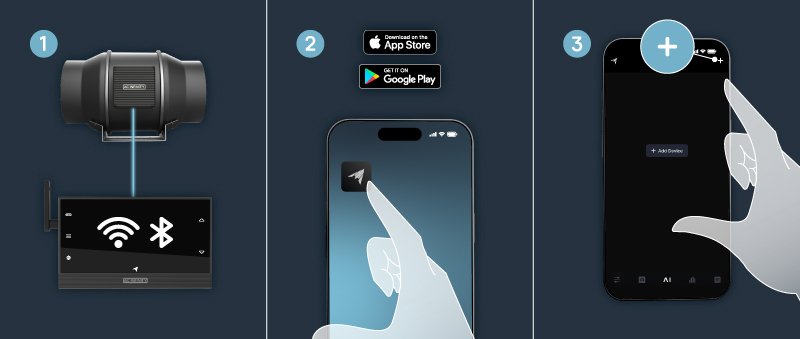
1. Plug the power supply into the CONTROLLER AI to power it.
2. Download the AC Infinity app.
3. On the "DEVICES" page, tap the "+" icon in the top right to add a new controller.
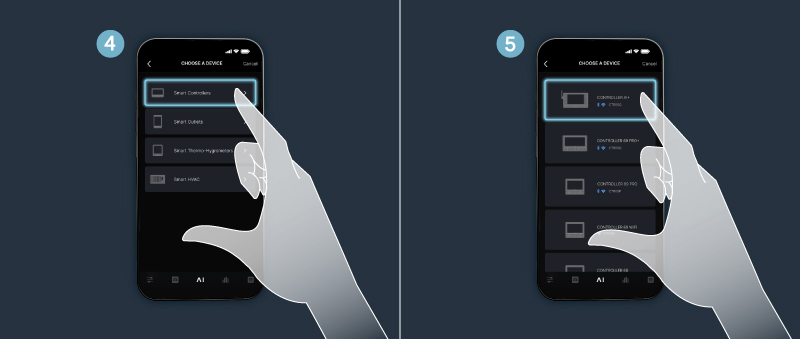
4. Select CONTROLLER AI+ and follow the steps with your controller nearby.
5. After pairing, tap your controller to open it and view the app charts below.
6. Repeat steps 3 through 5 to add additional controllers to the app.
App Diagram

1. DEVICES Page – Shows all controllers and hygrometers on one page.
2. ACCOUNT Page – Account login, password changes, app updates, and support info.
3. ADD DEVICE Page – Starts the pairing process for a new controller.
4. CONTROLS Tab – Set devices to follow a programming mode — just like on the controller.
5. ADVANCE Tab – Set up advanced automations, alarms, and notifications.
6. AI Tab – Set up self-learning programs powered by artificial intelligence.
7. DATA Tab – View climate graphs and charts, export CSV data.
8. HISTORY LOGS Tab – View past activity such as triggers and alarms.
9. SETTINGS Page – Access settings such as transitions, °F/°C, calibration, VPD offset, and more.
10. INFO Overlay – Shows additional info about the features of the current page.


